📄 Guide
If you already use Sumsub as your compliance (identity verification) vendor, you can share the verification data you have collected with DCS through Sumsub’s Sharing Partners mechanism. This simplifies KYC, because end users do not have to complete identity verification a second time on the DCS side. Once integration is complete, you pass a Sumsub share token in the card application request (fieldkycInfo.sumsubShareToken). DCS uses that token to fetch and reuse the user’s verification data from Sumsub, and the application then continues through the rest of KYC review.
Sumsub token sharing must be configured once in each of the two environments, sandbox (UAT) and production (PROD). A sandbox token cannot be used in production and vice versa, so always confirm that the environments match when configuring.
Two integration directions
Depending on who collects the verification data and who reuses it, there are two directions in which the token is added between you and DCS. Follow the steps that match your actual role.

configure the sharing direction that matches your role
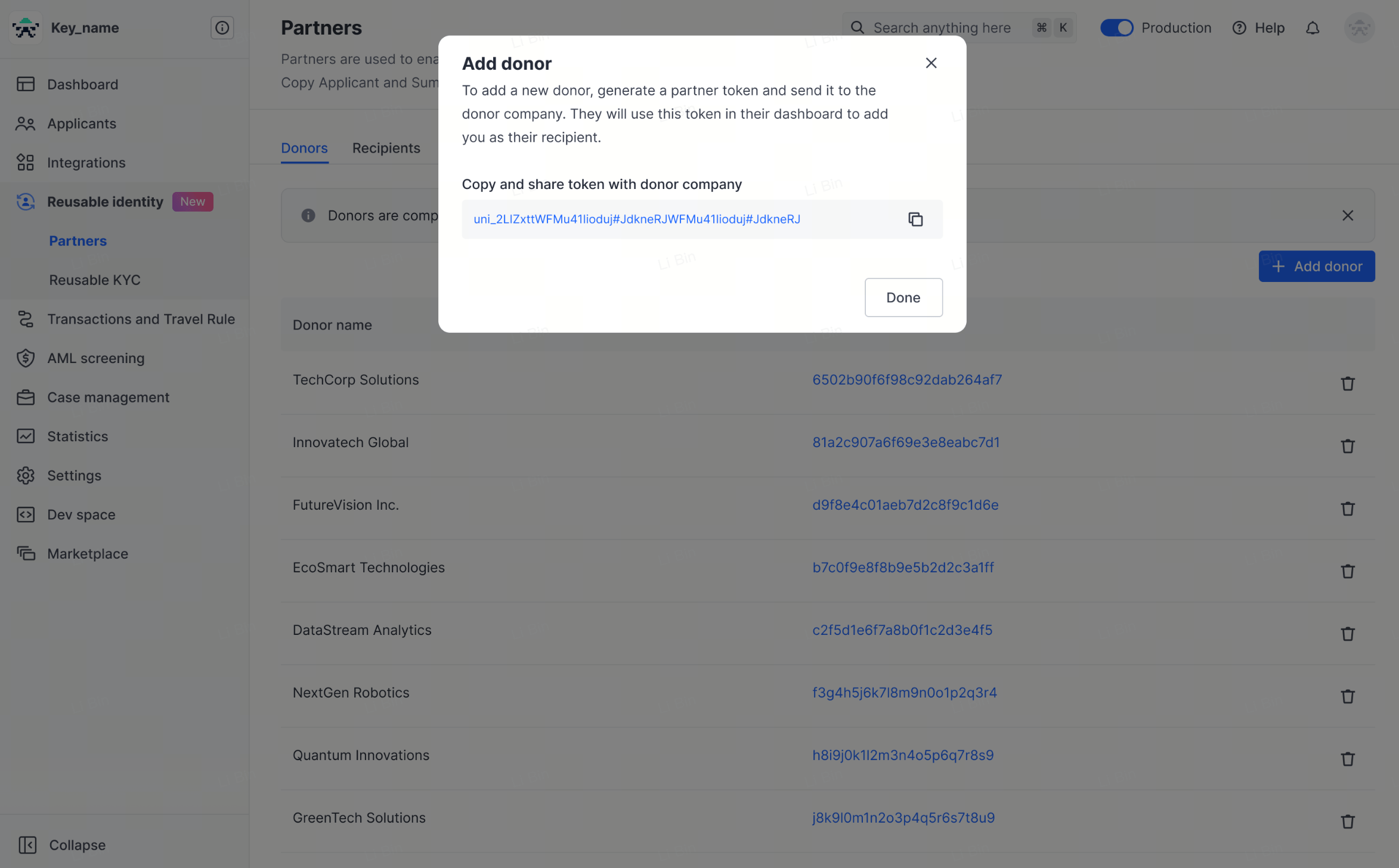
If you are the data provider (you collect the verification data and share it with DCS):- Obtain the UAT and PROD partner tokens from your DCS contact.
- On your Sumsub platform, go to Sharing Partners (see the Sumsub documentation) and add the token as prompted.
- Verify with your DCS contact: the name you registered with Sumsub should now be visible on the DCS Sumsub platform.
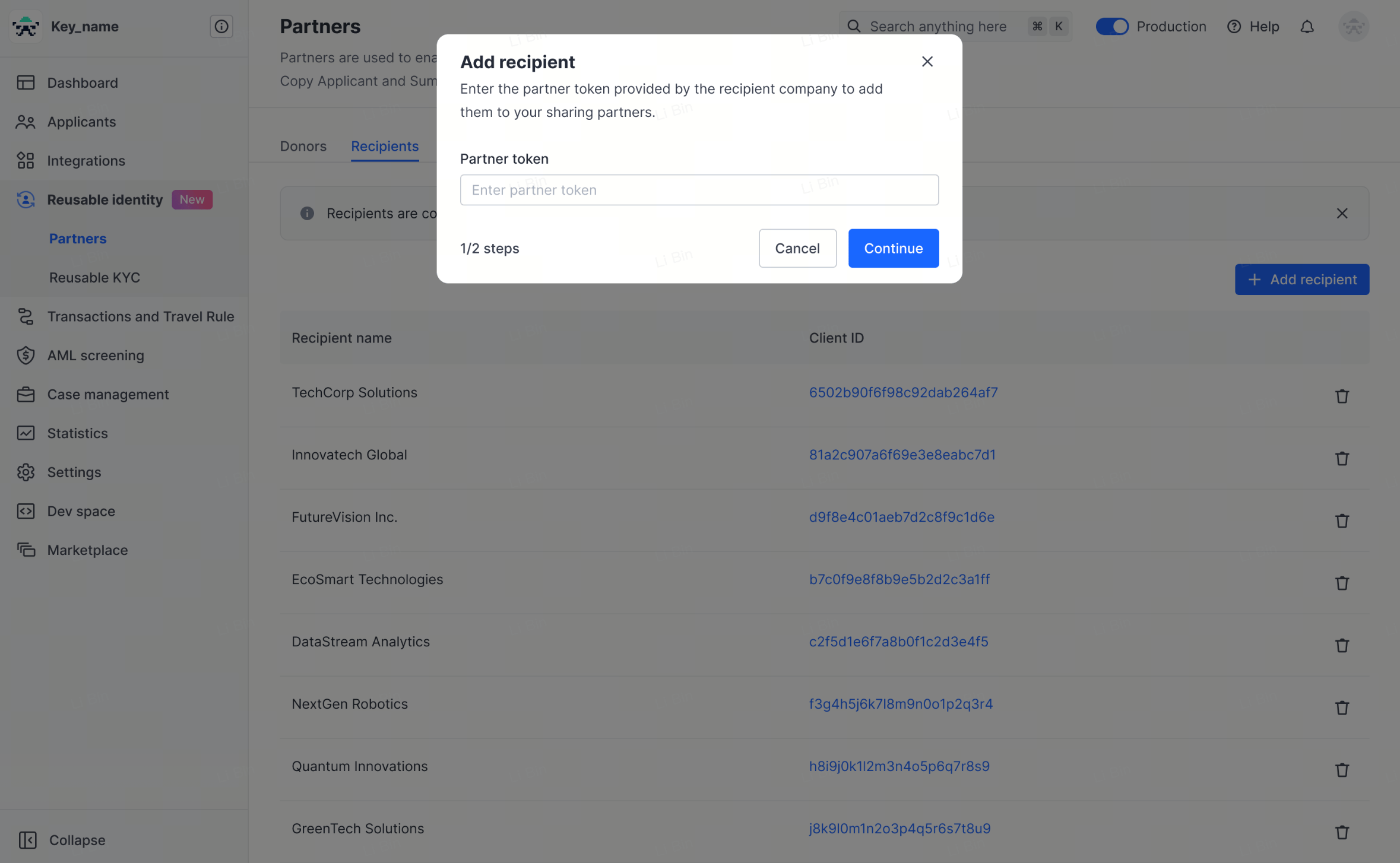
- Obtain your UAT and PROD tokens on your Sumsub platform and share them with your DCS contact.
- After DCS has added them, confirm on your Sumsub platform that DCS appears in the Donor list, and let DCS know the result.
Step 3: generate the share token
Generate a share token for the target applicant on the Sumsub side. A share token looks like_act-sbx-*** (sandbox) or _act-*** (production); these are illustrative only, so never write a real token anywhere.
Sumsub share tokens are normally single-use, so generate a new token for every application you submit. The environment (sandbox or production) must match the DCS environment you are currently integrating with.
Step 4: use the share token in a card application request
In the virtual card application request POST/card/v1/virtual-card/apply, put the generated share token in kycInfo.sumsubShareToken.
Besides
sumsubShareToken, kycInfo must also carry data that is not fetched from Sumsub, such as email, the POA fields poaDocType / poaDocUrlList / poaDocDate / addressLine1 / city / country, and the employment and source-of-funds fields employmentStatus / occupation / sourceOfFunds / sourceOfWealth. The card application endpoint specification is authoritative for the complete field list.
Sample request fragment (masked)
Every value in the kycInfo fragment below is a placeholder. Never write real user PII (phone number, email, identity document, address) or a real token.
Sandbox testing: generate a simulated KYC token
During sandbox (UAT) integration testing, if you do not yet have a working real Sumsub share token, you can call the simulated token endpoint provided by DCS to generate a test token: POST/simulation/v1/generate-kyc-token
The response envelope is always
{ code, message, messageDetail, data } (there is no success boolean), and the simulated token is returned in data.token. Note that messageDetail is an object (message / title / type / icon / action / linkTitle / linkUrl, all empty on a normal success) rather than null:
Troubleshooting
If Sumsub token sharing is not working as expected, work through these common causes:If none of the above resolves the issue, contact DCS technical support with the exact error message and the time it occurred.
The Sumsub POI / POA configuration baseline (required reading)
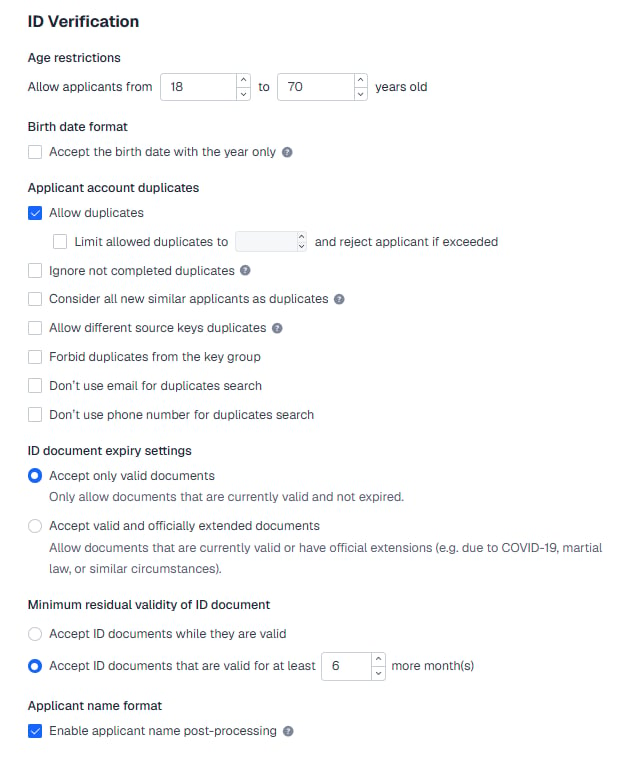
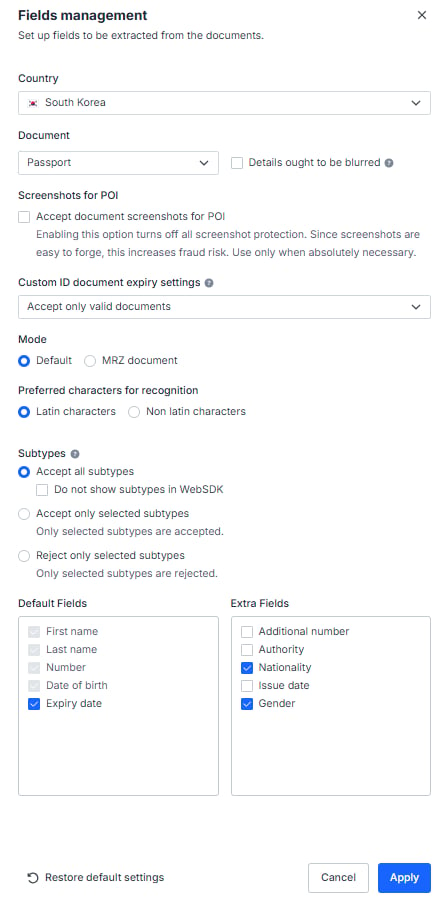
for the Sumsub token you send to DCS to pass verification, your POI (proof of identity) and POA (proof of address) configuration in the Sumsub console must match DCS exactly. Follow the screenshots below closely; a mismatched configuration will cause the token to fail verification and will hold up your launch.This baseline may be adjusted from time to time as compliance or regulatory requirements change, so DCS’s latest notice always prevails. For the table of accepted document types by country and when an additional POA is required, see About KYC Documents.
Part 1: Setting for POI (proof of identity)
1. ID Verification
2. Supported ID Documents
2.1 Blacklisted countries (41)
None of the following documents are accepted: passport, ID card, driving license or residence permit.
2.2 POI accepted as POA for nine designated countries
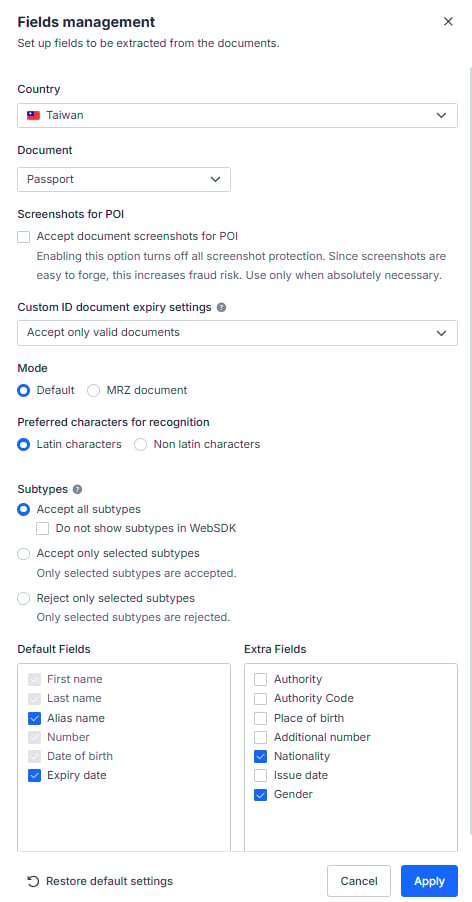
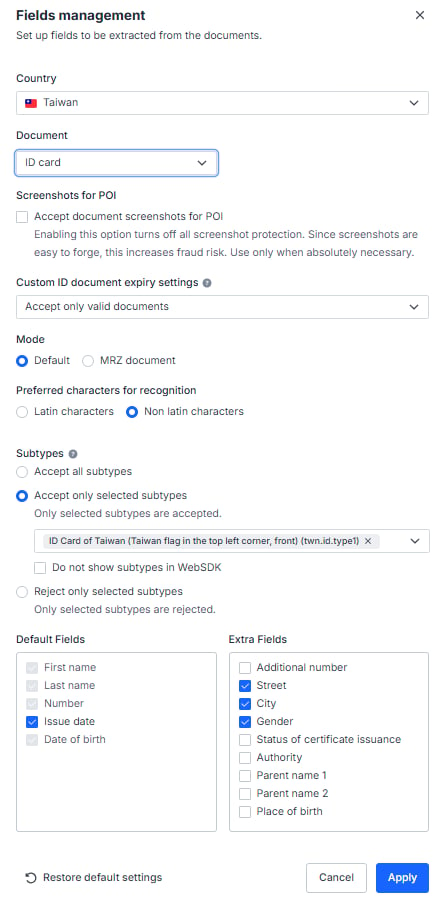
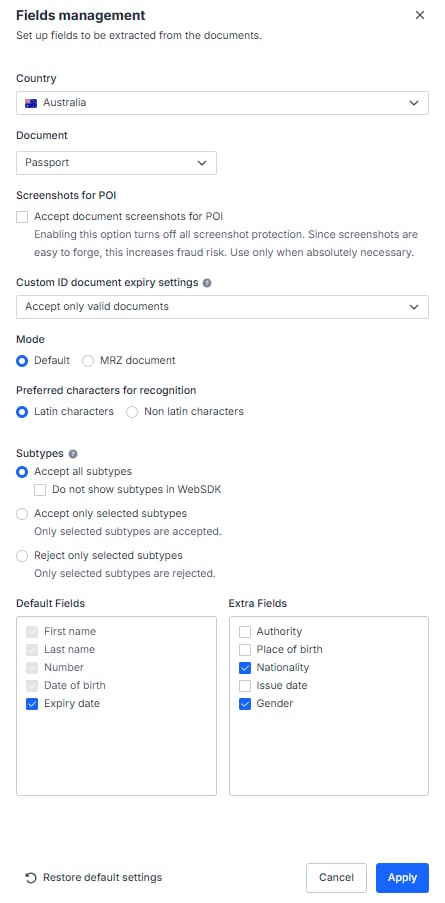
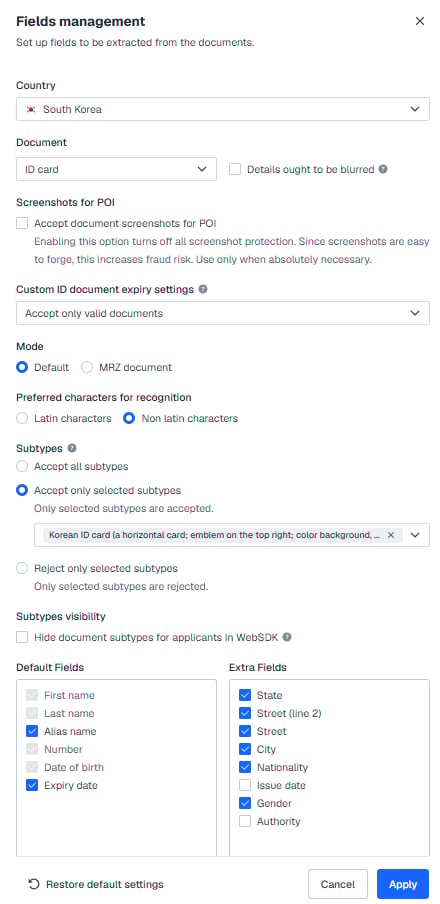
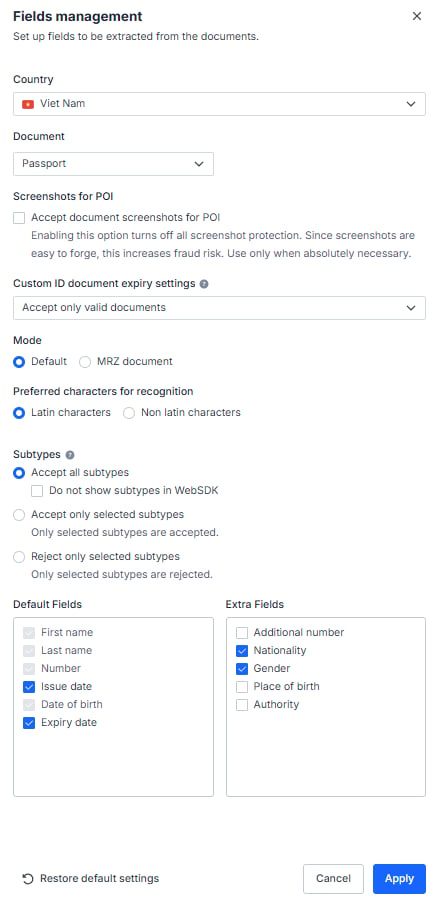
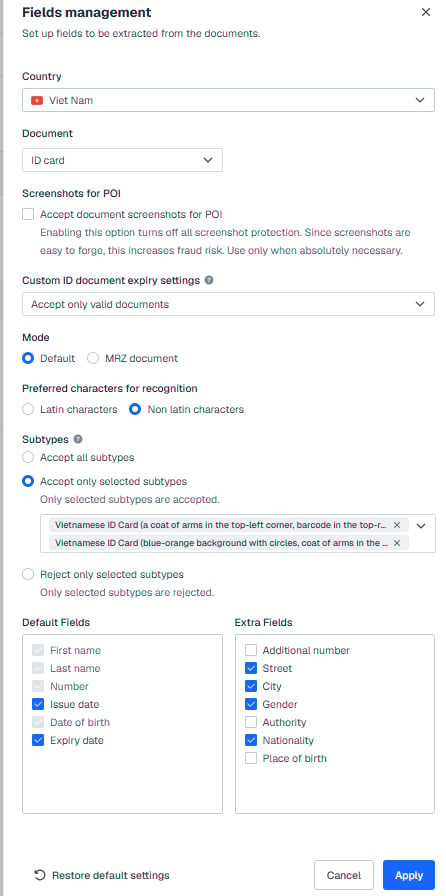
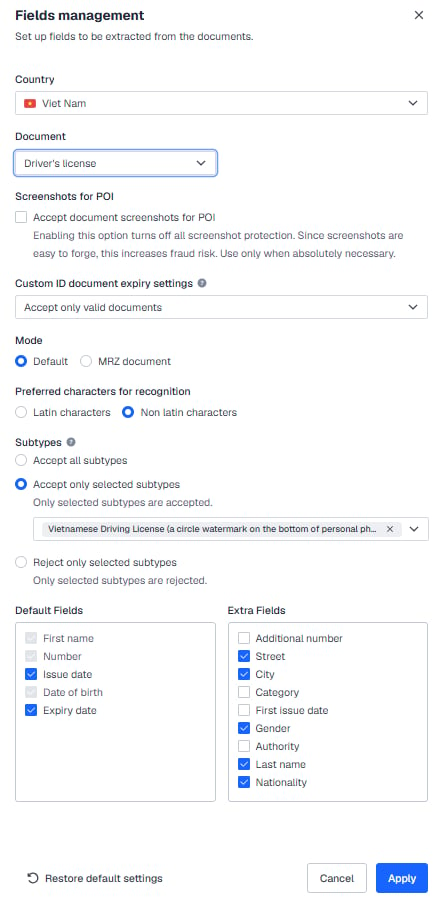
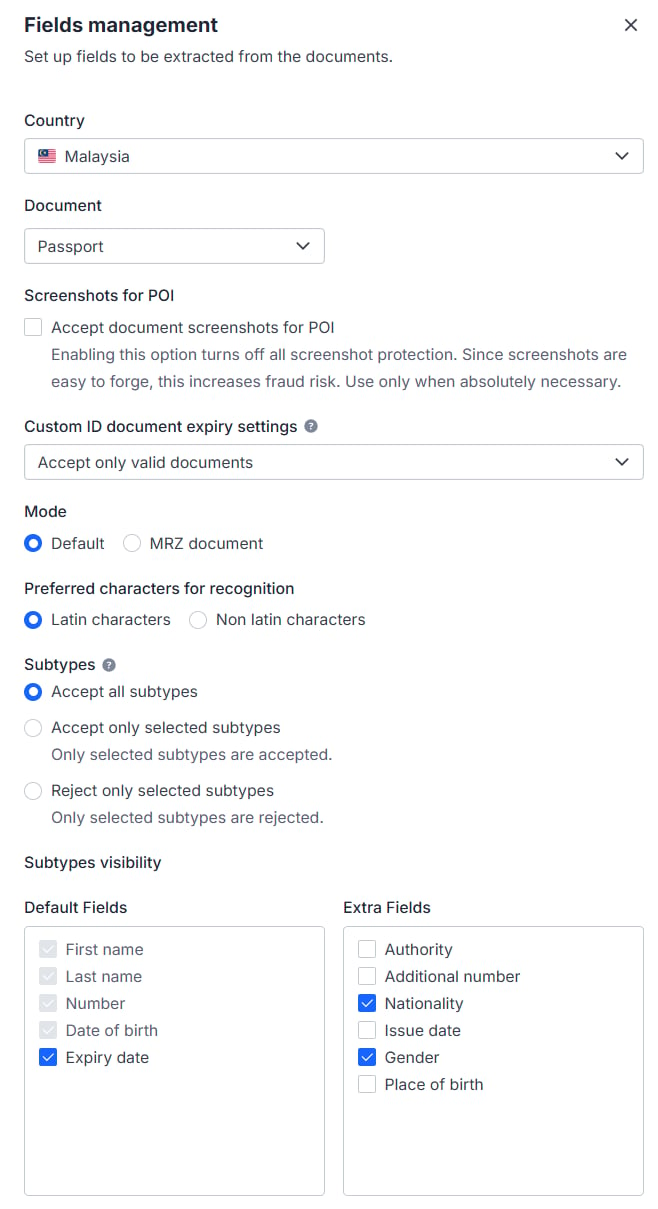
Supported countries: Taiwan, Australia, Japan, South Korea, Vietnam, the Philippines, Malaysia, Thailand and Singapore. Configure the accepted document types and subtypes for each country in Sumsub as shown in the screenshots below. Taiwan — passport and ID card accepted (subtypetwn.id.type1 only)



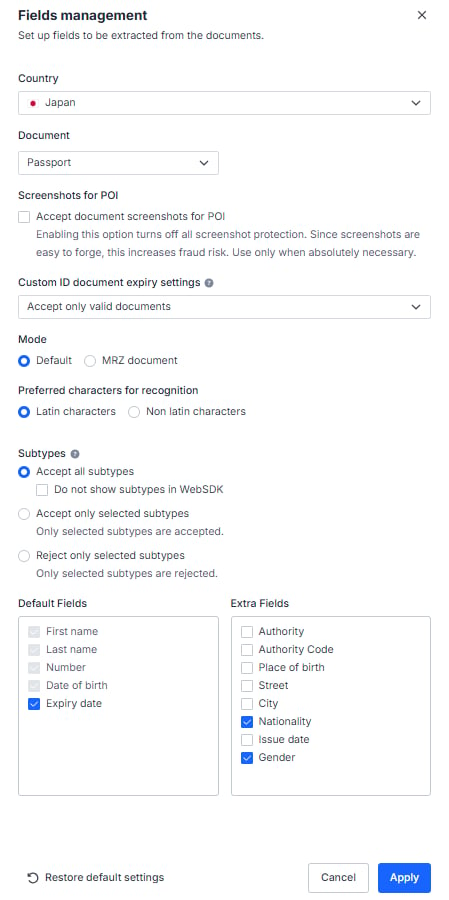
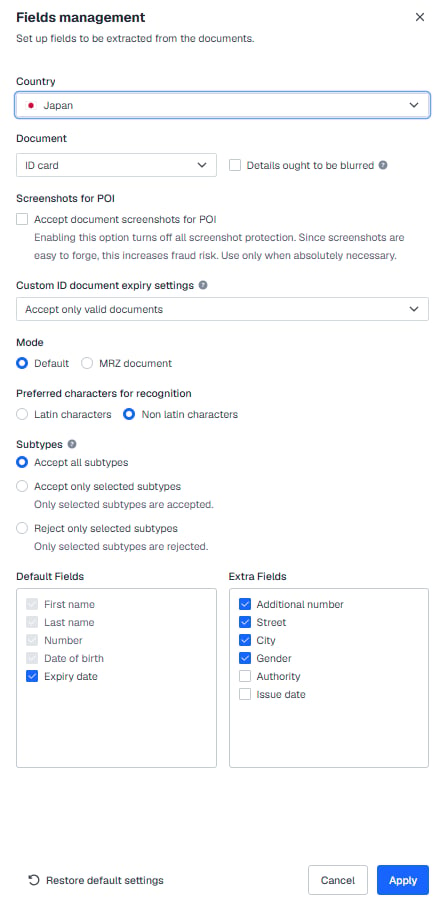
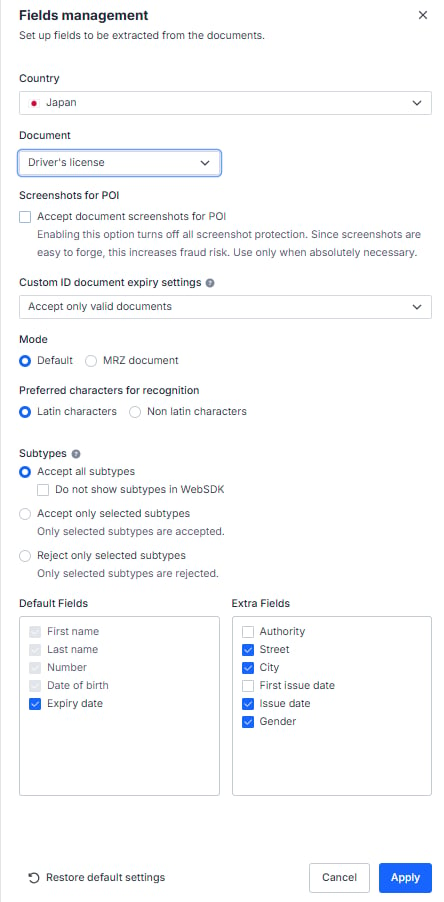
kor.id.type1 only)

vnm.id.type3 and vnm.id.type4 only) and driving license (subtype vnm.drvlic.type1 only) accepted

phl.id.type11 only) and driving license (subtype phl.drvlic.type1 only) accepted

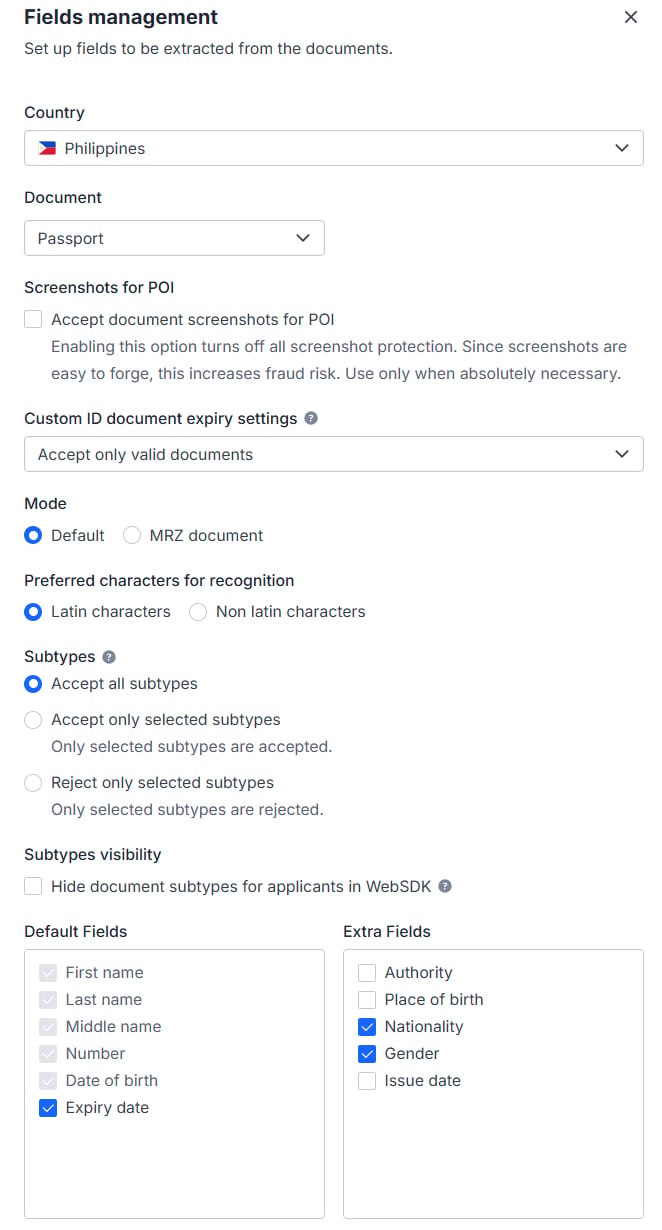
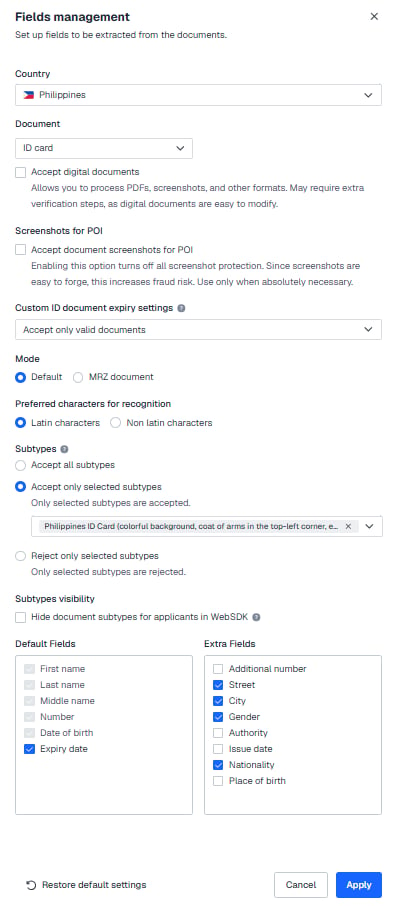
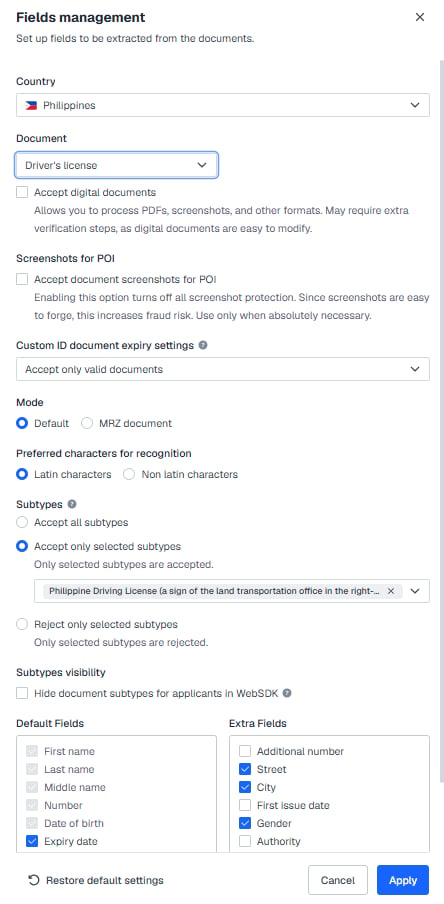
mys.id.type1 only) and driving license (subtype mys.drvlic.type1 only) accepted

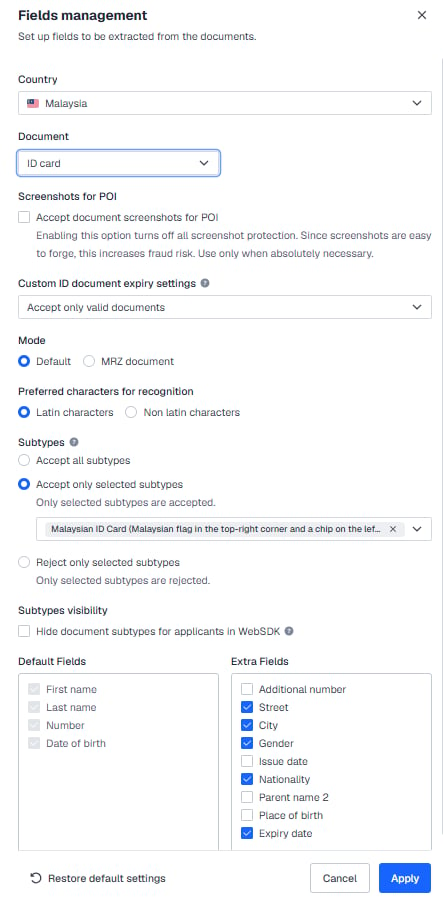
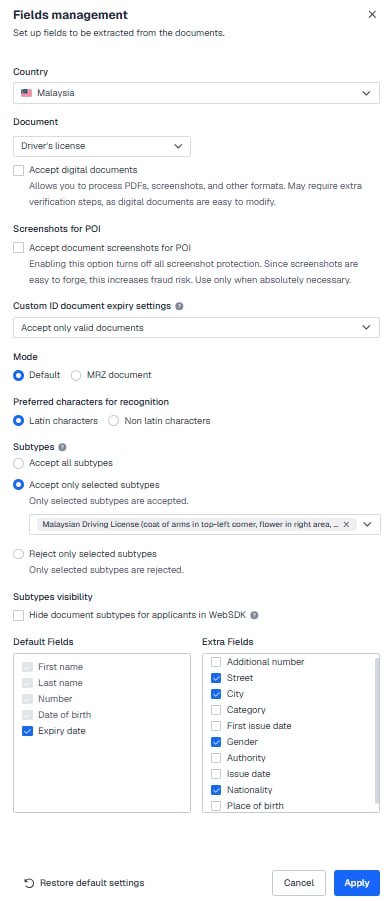

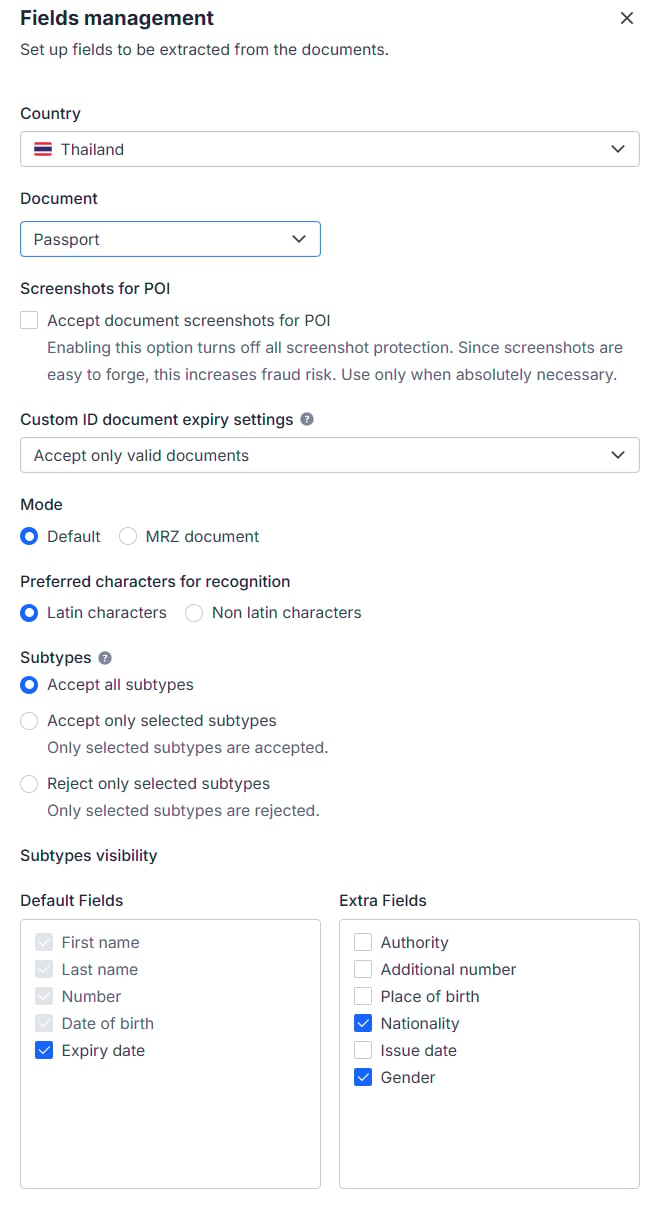
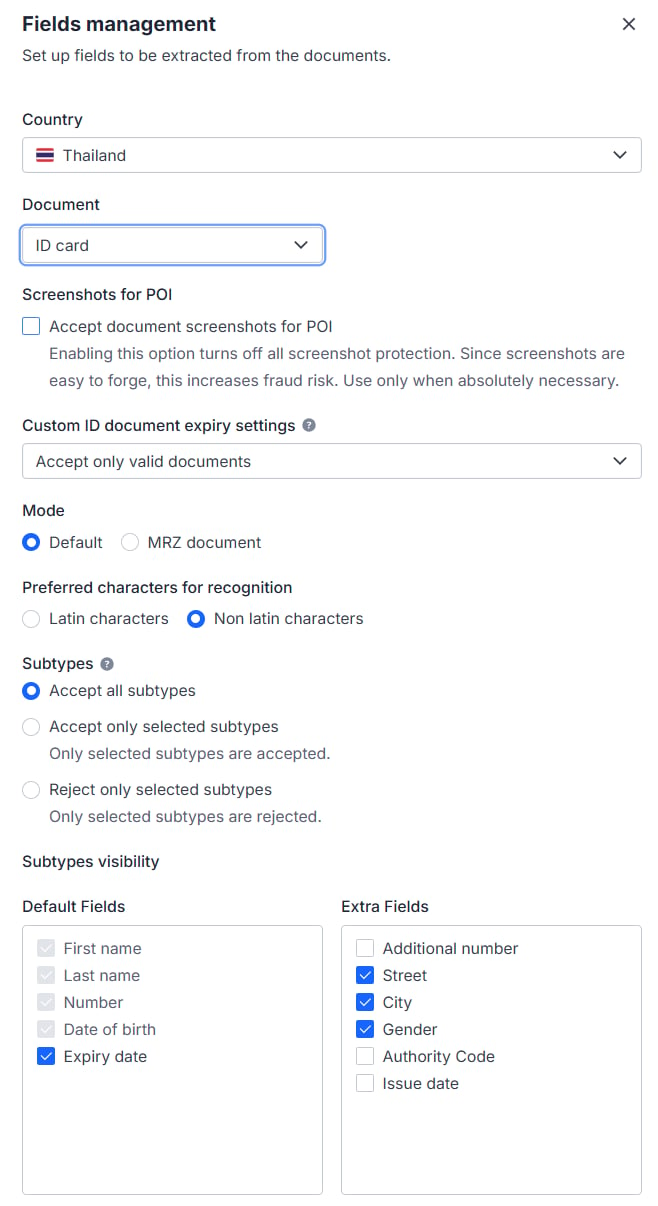

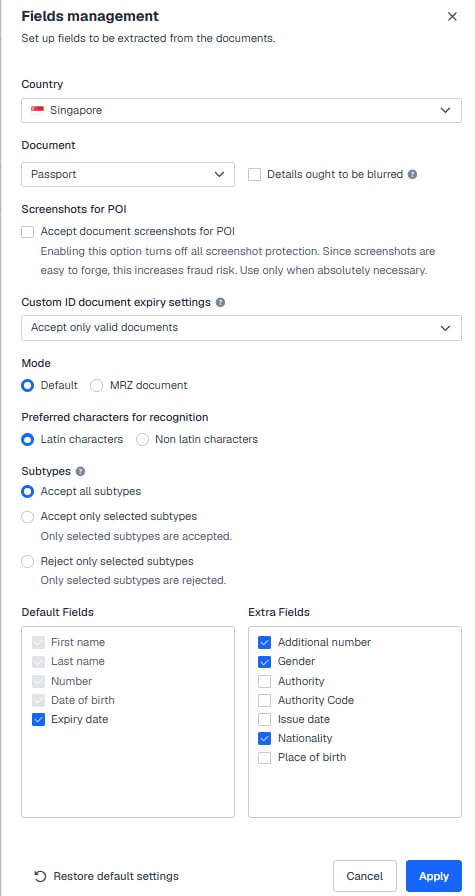
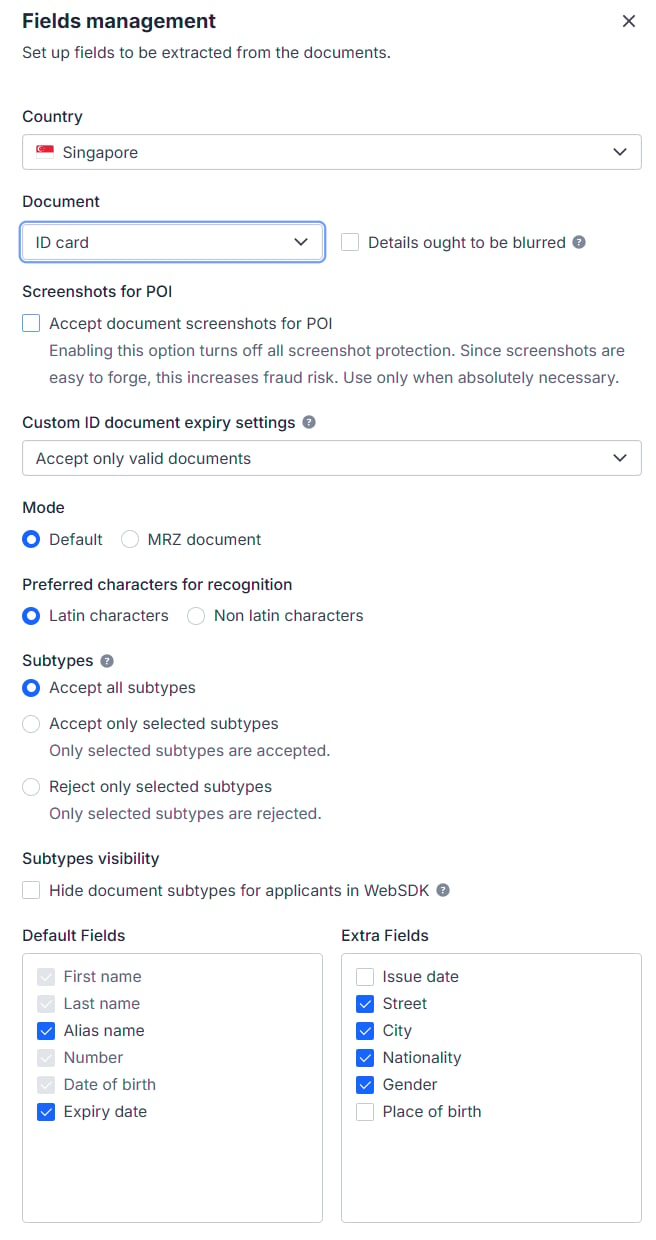
2.3 USA

2.4 Other countries
Passport only, single-sided; ID cards, driving licenses and residence permits are not accepted.
Part 2: Setting for POA (proof of address)
1. Workflow builder
If the POI document carries no address, the user goes on to POA (proof of address) verification. If the POI document does carry an address but the address country is Japan and the user’s IP is outside Japan, the user must additionally submit a passport to confirm nationality.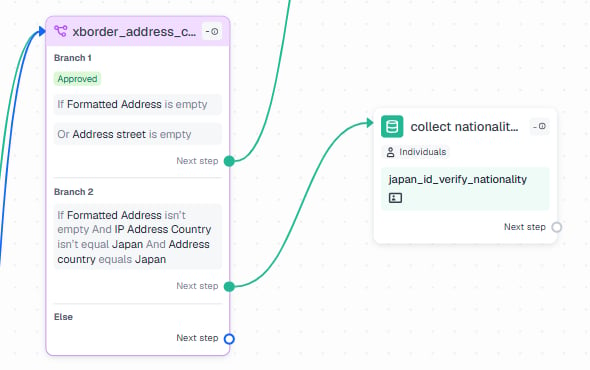
2. User verification
Note: proof of address (POA) is accepted only from designated countries, as set out in your agreement with DCS.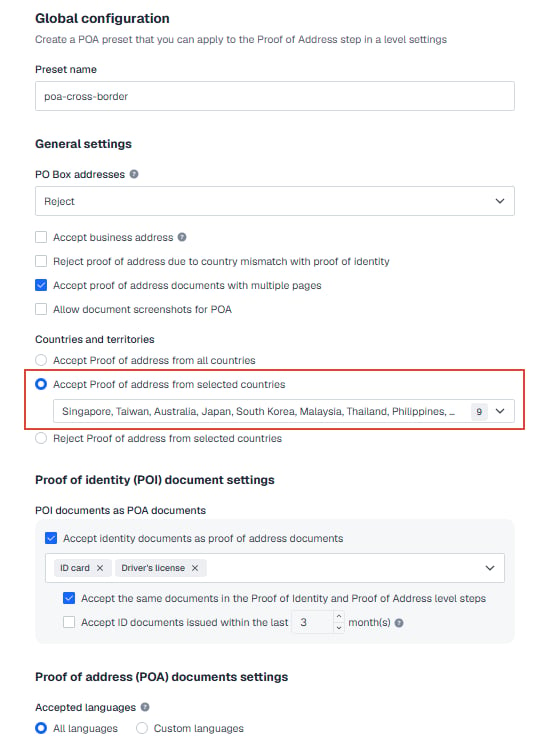
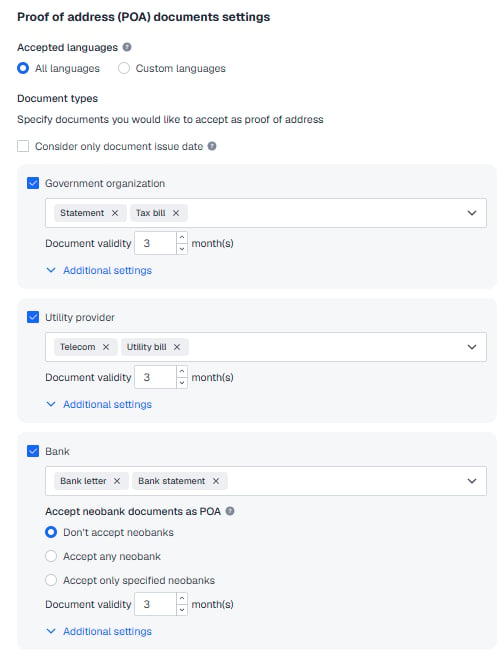
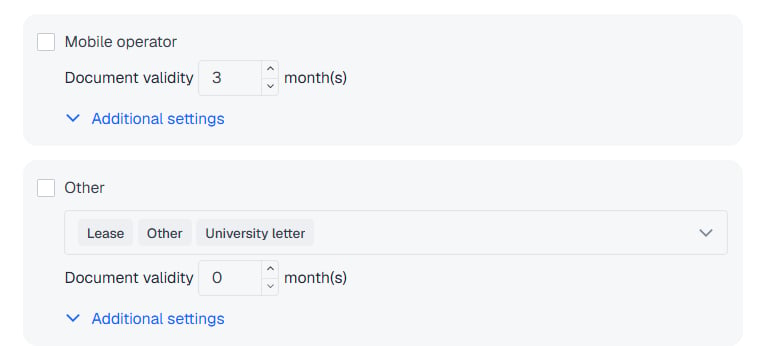
3. Verification level
USA residents need to be rejected.
Next steps
- The resubmission path when shared data is rejected: KYC Rejections and Resubmissions
- Acceptable document types and POA requirements: KYC Documents (same group)
- Compliance capability overview and navigation to each sub-page: Compliance Overview
- Complete field specification for the card application endpoint:
POST /card/v1/virtual-card/apply